
OWNER ANSWER / MYXPENG
Why the XPENG G6 Screen Layout Changes With CarPlay or Android Auto
CarPlay and Android Auto use a phone-projection layout, so their display differs from native XOS. On the UK new G6 illustrated in its brochure, the steering-wheel back button returns to the XPENG dashboard.
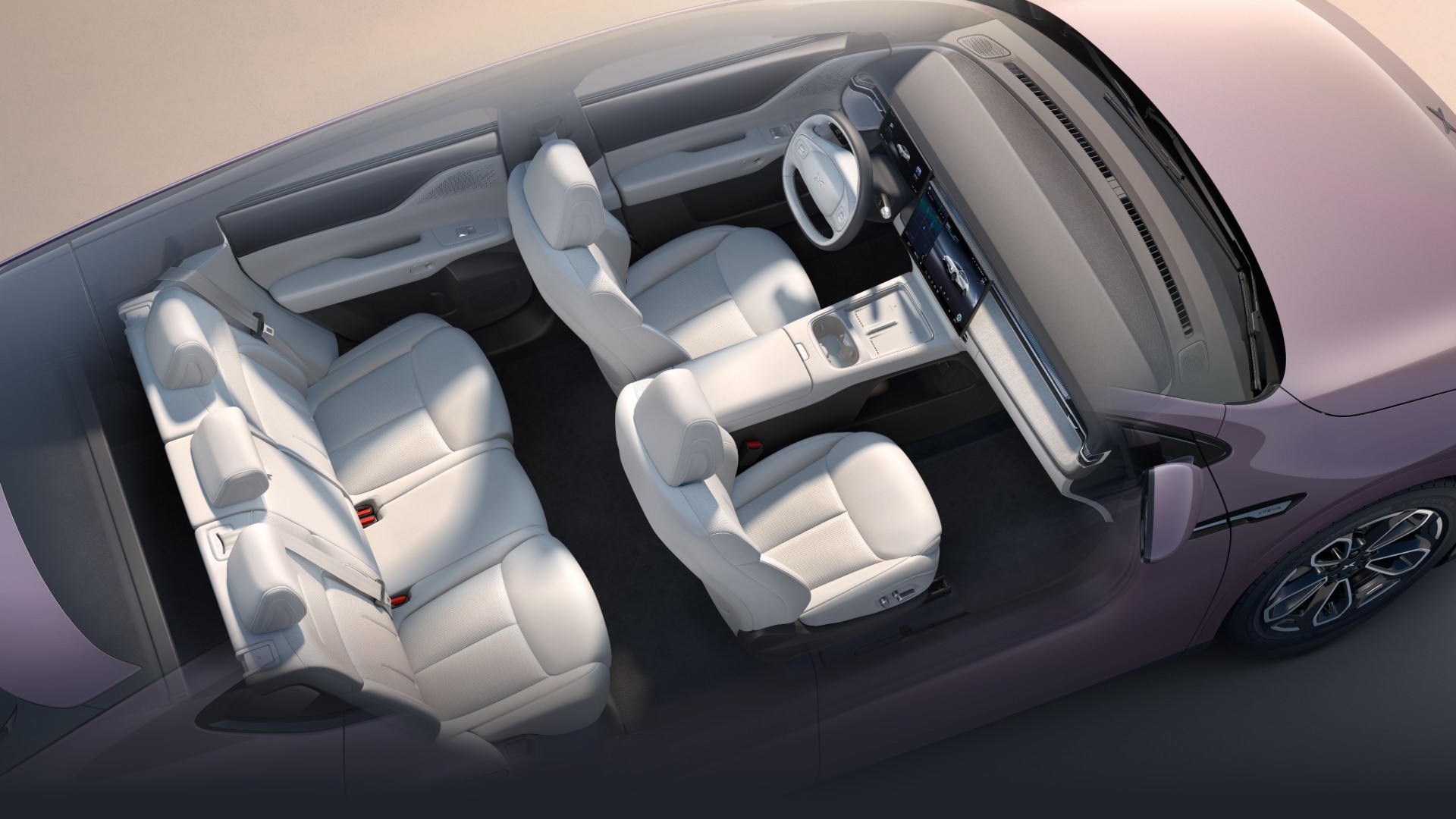
Match that button to the UK steering-wheel illustration. An earlier car or different XOS layout may use another supplied control.
Native map fills the screen? Restore the split home view
For the earlier UK G6’s native XOS layout, the UK handbook gives these controls. This is the built-in map/car view, separate from phone projection.
- While parked, tap the Home/house icon in the bottom taskbar to return to the homepage. When already on that homepage, tap it again to switch between full-screen and split-screen layout.
- When the vertical divider is visible, drag the split-screen line to change between full and split views. Use the pictured line rather than swiping randomly through the bottom taskbar.
- Tap the divider for the fixed small-window mode. The handbook shows choices including the 3D/Real-time VR Assist view, Map, Music and Browser. Select the native view you want when it is offered.
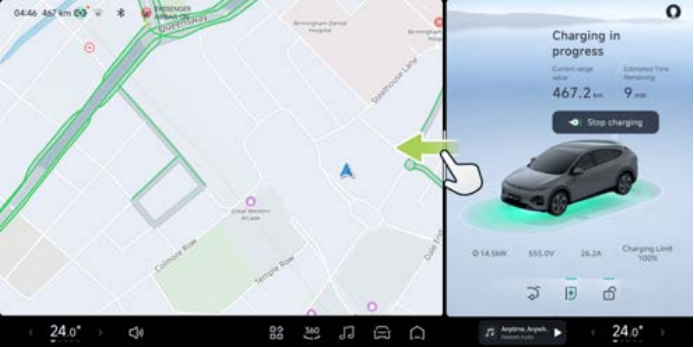
Useful result: the chosen native views return and the ordinary controls still respond. A different layout with working controls does not require deleting the phone pairing. If Home and other controls stay unresponsive, use the display-failure branch below. For a CarPlay/Android Auto layout, use the projection checks next.
Restore a missing bottom-bar shortcut
Press and hold a bottom-bar icon to enter its editor, then drag the wanted control back to an empty position. A missing shortcut is different from the climate system itself failing. Both the earlier UK G6 and 2025 English RHD handbooks describe customising this bar; the later illustration below groups controls under Apps, Window & Door, Seats and A/C.
- Park and open the editor. Finish any screen-cleaning mode first, then press and hold an icon on the bottom taskbar. On the earlier UK layout, holding an area of the app list also enters customisation. Look for the function/app choices before dragging; an ordinary tap opens a control rather than editing its place.
- Choose the missing function. On the 2025 English RHD layout, open the relevant group, such as A/C for an offered climate shortcut, or Apps → Air Conditioning for the climate app. Drag the wanted offered icon/control to a blank bottom-bar position. On the earlier UK layout, drag the offered function, app or shortcut from its App Centre to the bottom bar. This uses what your editor actually offers; it does not assume every fixed temperature display can be moved.
- Make space only if needed. In edit mode, the small minus at the upper-right of an existing shortcut removes it from the bar; dragging it back into the App Centre also removes that shortcut. Keep the controls you use and move only the one you intend. Removing a shortcut is not the same as uninstalling its app or switching off the car function.
- Finish and check the result. On the 2025 English RHD layout, tap Done or a blank area of the bottom bar. On the earlier UK layout, tap the bottom bar or blank app-list area to exit. Tap the restored shortcut once while parked: its intended climate/control panel should open. Return to the normal screen and confirm the shortcut is still in the chosen position.
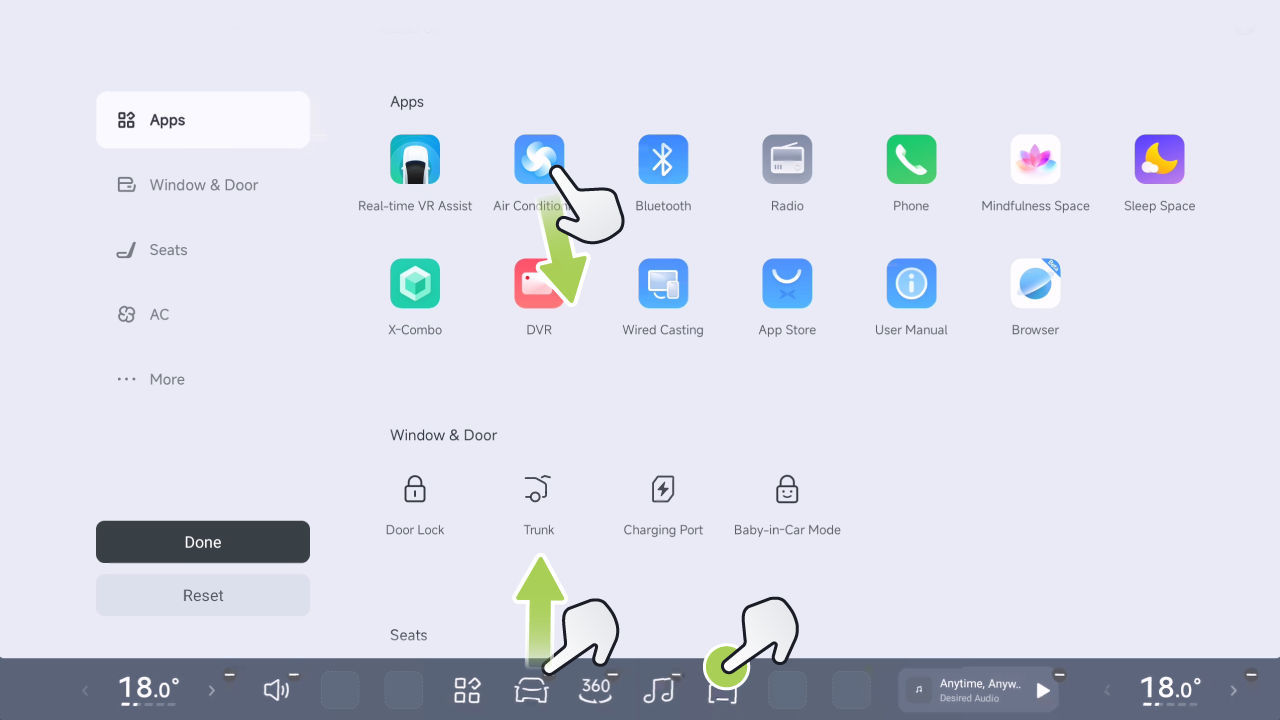
If the exact shortcut is not offered: exit the editor and tap the four-square App Centre icon, then Air Conditioning, to use the climate app for this trip. If that opens and responds, the missing shortcut has not established a heating fault. If the whole screen is unresponsive, use the parked display-recovery steps below; a factory reset or deleting the phone pairing is not the first step for one missing icon. Before wiping the screen again, use the G6 screen-cleaning mode steps to prevent accidental touches.
Change the card behind the steering wheel
For the earlier UK G6, press and hold the steering-wheel roller for the side of the instrument display you want to change. Select an offered card and confirm it. This changes the small display behind the wheel, not the centre-screen map or CarPlay layout.
- Park and identify the side to change. Finish any call or mirror/seat adjustment first so the roller is not controlling that panel. The pictured left roller is 2 and the right roller is 6.
- For the left instrument card, press and hold roller 2. When the card-switching selection appears, roll up/down to choose an available card, then press the roller to confirm. Look at the actual selected card; simply rolling without entering selection normally controls another function.
- For the right instrument card, press and hold roller 6. Select one of the offered right-side cards, then press the roller to confirm. Do not use the separate previous/next-track buttons as the card-entry control.
- Confirm the result before moving. If navigation is offered on that side, select it and check the displayed route information. If it is absent, use the centre-screen native map for this journey rather than assuming every card is available on both sides. Required warnings still need attention even when you choose another information card.
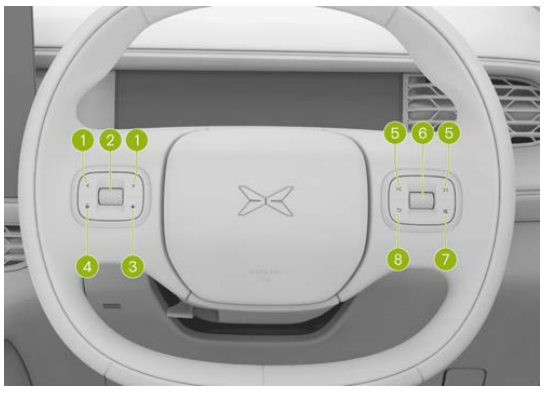
No selection opens: check that you are holding the roller itself, not one of its adjacent buttons, and that the ordinary display is responding. If the display is frozen too, use the parked display-recovery steps below. Do not keep changing the cruise speed or volume to try to switch a card while driving.
Return to XOS and compare
- Park and use the matching back button, or the on-screen Home/XPENG control provided by your installed version.
- If it is unavailable, disconnect projection from the phone’s connection panel and wait for native XOS.
- Check native navigation, media, cameras and climate access. If they work, reconnect the phone and test the affected function once.
- Check whether the phone recently updated and whether the layout change happens only while projection is active.
Useful result: normal XOS returns and the difference follows projection. That identifies an interface change rather than requiring a new phone pairing as the first action.
Stay parked if the screen remains blank/frozen or required safety information is missing. Use the separate display-fault route instead of troubleshooting while driving.
If it will not return normally
If native XOS remains frozen after disconnecting projection, the earlier UK G6’s documented restart is to hold the steering-wheel voice wake-up and mute buttons together while parked; use that combination only when its handbook and buttons match. If the display still fails, give XPENG the phone model/software, full XOS and a parked image of the failed display. Ask it to reproduce the native-versus-projection failure using that combination.
XOS 5.9.5 release information describes projection beside a native app on compatible vehicles. Check the car’s own release notes/equipment for split-screen availability; a short version number alone does not identify the feature set.
Sources checked 23 October 2026: XPENG. UK new-G6 brochure PDF 16/printed 15 back-button control; XOS5.9.5 international release note is not individual-car feature eligibility.
Native-layout controls checked 26 October 2026: earlier UK G6 handbook, printed 28–30 (PDF 29–31). Home-toggle and divider instructions apply to that native XOS interface.
Instrument-card controls checked 27 October 2026: earlier UK G6 handbook, printed 33 and 186–187 / PDF 34 and 187–188. Available cards and the native centre-screen layout are separate settings.
Bottom-bar controls reviewed 27 October 2026: earlier UK G6 handbook, printed 31 / PDF 32, and G6 2025 English RHD handbook, printed 33 / PDF 35. Entry, dragging offered controls, removing a shortcut and edition-specific exit controls were checked from the full pages.