GUIDE / MYXPENG
XPENG G6 screen hard to read: brightness, day/night and text size
On the G6 matching the 2025 English RHD handbook interface, open vehicle controls → Display to adjust the touchscreen and instrument-display brightness. The same panel provides Day/Night Mode; its illustrated Font Size control offers Small, Medium and Large.
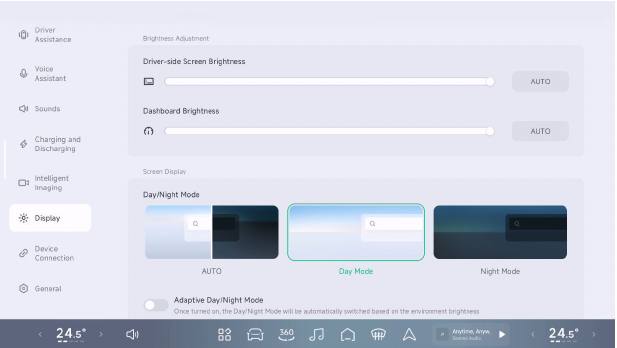
These controls are from the international 2025 English RHD G6 handbook, printed pages 34–35, not the separate earlier UK-hosted handbook. Use them when the Display panel and labels match your car; later XOS layouts can differ.

Make one display change at a time
- Open vehicle controls → Display. Identify the touchscreen and instrument-display brightness sliders. Adjust the affected display gradually and watch it respond; moving the other slider changes a different display.
- Compare Day Mode and Night Mode while parked. They change the display presentation, separately from brightness. Choose the clearer offered mode for the conditions rather than leaving a dark presentation selected simply because it was used last night.
- If you want the display to follow ambient light, review Automatic and Adaptive Day/Night Mode on this panel. The handbook says the adaptive control switches day/night presentation according to surrounding light. After your manual comparison, leave the automatic/adaptive setting in the state you prefer.
- If letters are the difficulty, use the illustrated Font Size control and compare Large with the previous setting. Check the native Display panel's text afterward. If only one phone-projection app is hard to read, compare that same content on the phone and native XOS before treating it as a car-wide brightness fault; this control does not establish identical text sizing in every app.
- For sunlight reflections, compare the same display in shade while parked, keeping your normal driving position. Better visibility in shade shows that lighting contributes; raising brightness alone may not remove a reflection.
What you should see: the selected display responds to its brightness slider, the chosen day/night presentation is visible and the native text-size comparison is readable. Keep the setting that helps; a larger brightness number is not useful if it makes night viewing uncomfortable.
If it is still difficult to read
One app only: return to native XOS and compare the same display. If native controls remain readable, check that app's own display/text settings and phone projection rather than changing the instrument display. Keep a readable native route for the current trip.
All content is dim but still responds: compare the actual Display sliders and day/night selection, then note which display changes and which does not. If the matching controls produce no brightness response, give XPENG the exact display, full XOS and the parked comparison result; request a display-brightness control/backlight check. A photograph in strong sun alone does not distinguish a reflection from failed brightness control.
Blank or frozen: stop the brightness comparison. The same 2025 English RHD G6 handbook, printed page 258, documents holding the steering-wheel voice wake-up and mute buttons together to restart the instrument and centre display. Do this while parked with no OTA installation running, then wait for both displays to return and check the normal controls. If the failure remains, keep the car parked and give XPENG the affected display, full XOS and restart result; request the display-system fault check rather than repeating brightness changes.
Before buying a screen protector or mount
This guide does not establish that a particular anti-glare film or tilting bracket fits your G6. Ask for the exact screen/generation compatibility and fitting instructions first. A film may change reflection, clarity and touch response; compare the ordinary display controls before making a hardware change. Do not dismantle or tilt the fixed screen as a brightness test.
Controls reviewed 26 October 2026: international G6 2025 English RHD handbook, printed34–35/PDF36–37 including illustrated Font Size row, and printed258/PDF260 normal display restart. Shade/app comparisons are diagnostic checks, not guaranteed repairs.
Open source