
GUIDE / MYXPENG
G6 digital rear-view mirror: switch view and improve clarity
If the fitted G6 digital rear-view mirror gives an unclear night-time image, park and press the button on the top edge of the mirror housing to return to ordinary mirror mode. Adjust the mirror itself for a useful reflection through the rear window; brightness and camera zoom are separate controls.
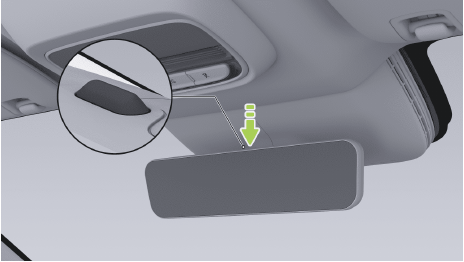
These controls match the fitted Streaming Rearview Mirror in the G6 2025 English RHD handbook, V5.8.0 interface edition, printed 245–249 / PDF 247–251. A standard interior mirror or another housing/menu needs its own instructions.

Make adjustments while parked. The handbook says not to use the streaming view with a restricted camera or in heavy rain, snow or fog; switch to a clear ordinary view, and stay parked if you cannot establish safe rearward visibility. Use direct observation and exterior mirrors too, rather than relying on one image.
Set a clear view before driving
- Set the driver's seat first and compare what is unclear: the camera display, the ordinary reflection, or both. Keep luggage and rear-window obstructions out of the ordinary mirror's sightline. Check the rear camera and the photosensitive unit on the back of the mirror are clean and uncovered; for contamination on the accessible camera surface, wipe with a soft cloth or use low-pressure water. Do not aim a pressure washer at the camera.
- For the ordinary mirror fallback, press the button on top of the mirror housing shown above. This edition toggles between streaming and ordinary mirror modes. Hold the mirror with both hands and adjust its physical angle until the rearward reflection is useful. Press the same button again only when you want to return to the camera display and conditions suit it.
- To use the screen controls on this edition, open vehicle controls → Drive → Streaming Rearview Mirror. Turning its main switch off selects ordinary mirror mode; turning it on selects the streaming display. Confirm the actual view changed. Power-on normally restores the last remembered mode in this handbook.
- With the Streaming Rearview Mirror adjustment panel open, use the left steering-wheel roller to zoom the camera view in or out, and the right roller to move that view up or down. Make one small adjustment and compare the actual view. These assignments belong to the open mirror panel; they are not permanent music or driving-control assignments.
- In the same panel, choose a comfortable Brightness Preference from Lv.1 to Lv.5. The handbook describes automatic adjustment within each selected level according to ambient light. Compare the view while parked; selecting the brightest level is not a cure for rain, a dirty lens or missing pixels.
- Check both modes before departure: ordinary reflection is aligned, and the camera view is clear when it is suitable to use. If the display is still obscured or abnormal, leave streaming off and use the clear ordinary view while arranging the specific check below. Do not keep altering brightness to conceal an unusable camera image.
The camera view changes in reverse or at speed
The same panel has separate automatic view adjustments. With the reversing option enabled, R changes the camera field of view and leaving R restores its prior view. The high-speed option changes the view after more than 10 seconds above 80 km/h in D; it restores the prior view after leaving D or after more than 10 seconds at or below 60 km/h. These are this handbook's conditions, not a reason to drive a test route.
If you want a steady manually chosen view, review those two options while parked and compare their selected state with the change you noticed. The handbook allows manual view adjustment even with an automatic option enabled. Do not confuse a programmed field-of-view change with the whole display losing its picture.

If the picture is still poor
Some scattering or halos around lights at night are described in the handbook, but an unusable image is not something to accept as your only view. Compare after cleaning the accessible camera and with ordinary mirror mode. Missing pixels, a partly missing image, an abnormal whole display or rear damage needs the camera/display path checked; the handbook directs ordinary mirror use while arranging repair.
Give XPENG the exact G6/handbook, full XOS, affected mode, whether ordinary reflection is clear, whether the issue changes with brightness or view adjustment, and any rear damage. Ask it to distinguish a dirty/obstructed camera, the light-sensing unit and a camera/display fault. Do not dismantle the housing or substitute a whole-car reset for those observations. If neither mode provides the rearward visibility you need, resolve that before driving.
Source checked 27 October 2026: G6 2025 English RHD handbook, V5.8.0 interface edition, printed 245–249 / PDF 247–251, plus camera cleaning on printed 313 / PDF 315. Physical toggle, ordinary-mirror alignment, Drive/Streaming Rearview Mirror, roller mapping, five brightness levels, automatic-view conditions and poor-weather/display-fault limits. Comparisons identify a usable view and a specific next check; no guaranteed repair or other-generation controls.
Open source